This is an old revision of the document!
Branch Management
You can set up multiple branches under a single account to run your business across different locations, and control which warehouses, teams, and employees belong to each branch.
To add branches, go to User Menu > Subscription to purchase the Branch Management add-on.
Once enabled, navigate to User Menu > Branch Management to open the branch configuration dialog and begin setting up your branches.
Branches
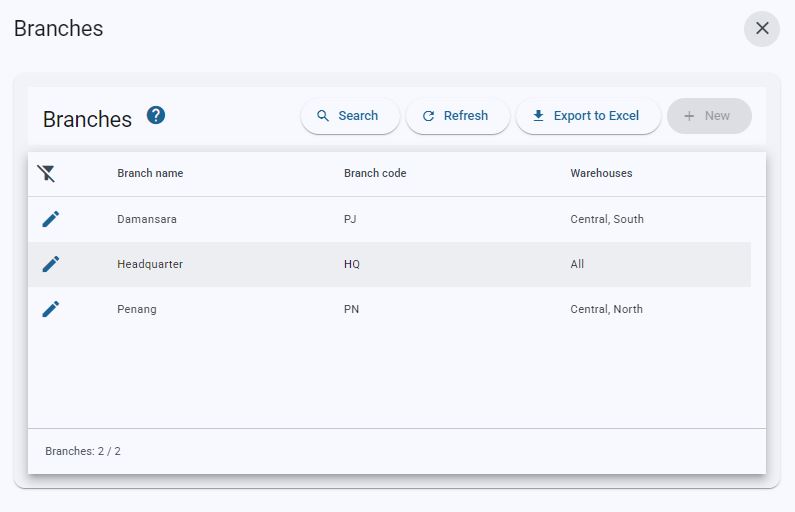
- The following options are located on the toolbar
- Search: Allows you to search for specific data
- Refresh: Updates the current view by reloading the data
- Export to Excel: Enables exporting the current view data to an Excel file.
- Help: Opens the Chillhub knowledge base.
- New: Creates a new branch.
- This button is enabled only when the number of configured branches is below the maximum allowed by your subscription plan.
- Data Table:
- : Modify branch details
- Name: Name of the branch.
- Code: Short code used to identify the branch.
- Warehouses: The warehouses assigned to the branch. (Hidden in Mobile View)
- Obsolete branches remain in the list, shown greyed out.
- Footer:
- Branch Count: Number of branches in use, out of the maximum allowed by your subscription (e.g. 2 / 5).
The HQ branch and obsolete branches are not counted.
Branch form
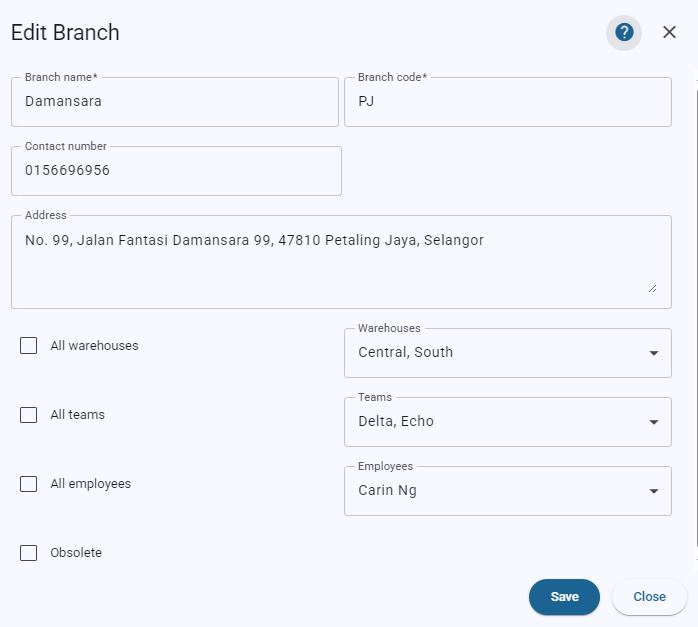
- Name: The name of the branch. (Required)
- Code: A short code used to identify the branch. (Required)
- Contact No.: The contact number of the branch.
- Address: The address of the branch.
- All Warehouses: Enable this checkbox to make all warehouses available to this branch.
- Warehouses: Select the specific warehouses that belong to this branch. (Only visible if All Warehouses is off)
- All Teams: Enable this checkbox to make all scheduling teams available to this branch.
- Teams: Select the specific teams that belong to this branch. (Only visible if All Teams is off)
- All Employees: Enable this checkbox to make all employees available to this branch.
- Employees: Select the specific employees that belong to this branch. (Only visible if All Employees is off)
- Obsolete: Mark the branch as obsolete when it is no longer in operation. Obsolete branches are kept in the list (greyed out) for historical records and are not counted toward your branch limit.
- Click Save to save the branch, or Close to exit without saving.
- Note: You need Full Access to Branch Management in your Sub-user role to create or edit branches. Otherwise, the form is read-only.
Related settings
- Subscription: Purchase the Branch Management add-on and set the Number of Branches you need (RM22/month per branch).
- Sub-user form: Use Super access to give a sub-user access to all branches with consolidated data, or Assigned branches to limit them to specific branches.